


How to Control Your ZWO Seestar from a Computer (Mac and Windows)

You can control your Seestar from a computer instead of reaching for your phone every time you want to choose a target or check an imaging session. On a compatible Mac, you can run the official Seestar app and use the familiar interface with a mouse and a larger screen.
In this tutorial, I'll show you the Mac setup from my video, explain the two Windows options I mention, and walk through displaying the Seestar's live camera feed in VLC. You'll find the full walkthrough video near the end if you want to follow along.

Before You Start: Control or Live View?
There are two different things you might want to do:
Control the telescope: Use an app to choose targets, open the Sky Atlas, and start an imaging session. The Mac walkthrough below uses the official Seestar app.
Display the camera feed: Open an RTSP stream in a player such as VLC. This puts the live view on another screen, but VLC doesn't replace the Seestar app's telescope controls.
For the Mac method, you need a Mac with Apple silicon, like an M1 or later model, and access to the Seestar app in the Mac App Store.
Turn on your Seestar and keep it within Wi-Fi range. Menu labels can change with app versions, so the screenshots below show the interface used in my video.
How to Control Seestar from a Mac
Step 1: Install the Official Seestar App

Open the App Store on your Mac and search for Seestar. Look under iPhone & iPad Apps if you don't see it in the Mac Apps results. Download the official Seestar app, then open it.
The interface should look familiar if you've already used Seestar on your phone. This is pretty much the mobile app running on your Mac.
Step 2: Allow the Connection Permissions
The first time you connect, macOS may ask for permissions like Bluetooth and local network access. Allow the access needed for the app to find and communicate with your telescope, and make sure Bluetooth is switched on in your Mac's settings.
Click Connect in Seestar and select your telescope. During the first connection, the app might ask you to press the telescope's physical RESET button to confirm the connection. Follow that prompt as shown below. You don't need to perform a factory reset or hold the button down as a general troubleshooting step.

Step 3: Check Which Wi-Fi Network You're Using
If you're connecting directly to the telescope, open your Mac's Wi-Fi menu and join the Seestar's Wi-Fi network. Return to the app and connect.
If you've already configured Station Mode, use the local Wi-Fi network that the Seestar has joined instead. Station Mode connects the telescope through your existing network, so your computer needs to be on that network too.

Once the connection succeeds, you should see the telescope's home screen in the app. If it fails, check the network selection and the app's connection permissions before changing anything else.
Step 4: Open the Sky Atlas and Start Your Session
Open the Sky Atlas. On the first launch, the app may download its atlas data. You can then browse the sky and plan your framing with the mouse.
Return to the home screen and enter the imaging mode you want, like Stargazing. From there, follow the same setup and capture workflow you use on your phone.
How to Control Seestar from Windows
I use a Mac, so I can't demonstrate a Windows connection. The two options I know of are Seestar Alp and BlueStacks. They take different approaches, and you should check their current requirements against your telescope model and firmware before setting one up.
Option 1: Seestar Alp
Seestar Alp is a community project for Seestar control and automation. It is separate from ZWO's official mobile app.
Start with the project's installation instructions and supported-device information. This is the option to investigate if you want its control and automation features and don't mind spending more time on the initial setup.
Option 2: BlueStacks
BlueStacks runs Android apps on a computer. This adds an emulator between Windows and the app, so kinda similar to the way I use the app on my Mac.
Learn More About Your Seestar

If you'd like a guided workflow beyond the computer connection, my ZWO Seestar Smart Telescope Mastery course covers setup, the app, imaging, and processing. This tutorial for example is explained more in-depth in the course.
You can also browse my free astrophotography tutorials for more practical guides.
How to Display Seestar's Live View on Your Computer
You can also send the live camera feed to an RTSP-compatible player. You can use VLC which is easy to use.
RTSP stands for Real Time Streaming Protocol. For this setup, think of it as a network address that lets your player receive the telescope's live video.
Step 1: Activate Station Mode
Connect to the telescope in the Seestar app. Open the Me page, select Wi-Fi, and check Station Mode. Configure the telescope to join your local Wi-Fi network if you haven't already done so.
Connect your phone and computer to that same network. This gives the player a network path to the telescope.

Step 2: Copy the RTSP Address
Go back to Me and open Advanced Feature. Look for Telephoto RTSP address and, on models with the option, Wide-angle RTSP address.
Tap Get beside the camera you want to use, then copy the address from the pop-up. In my demonstration, I use the wide-angle camera because I'm indoors.

Transfer that address to your computer. If your devices share a clipboard, you can paste it directly. Otherwise, send yourself the text or type it carefully.
Step 3: Start a Supported Live View
Before trying to play the stream, enter a supported imaging mode in the Seestar app and wait until you can see a live camera image.
For my indoor test, I select Scenery/Landscape mode. The live view needs to be running before VLC can display it.
Step 4: Open the Address in VLC
Download VLC from VideoLAN if you don't already have it. Then:
On Mac: Go to File > Open Network, or press Command + N.
On Windows: Go to Media > Open Network Stream.
Paste the RTSP address copied from your Seestar into the network URL field.
Click Open or Play, depending on your version of VLC.

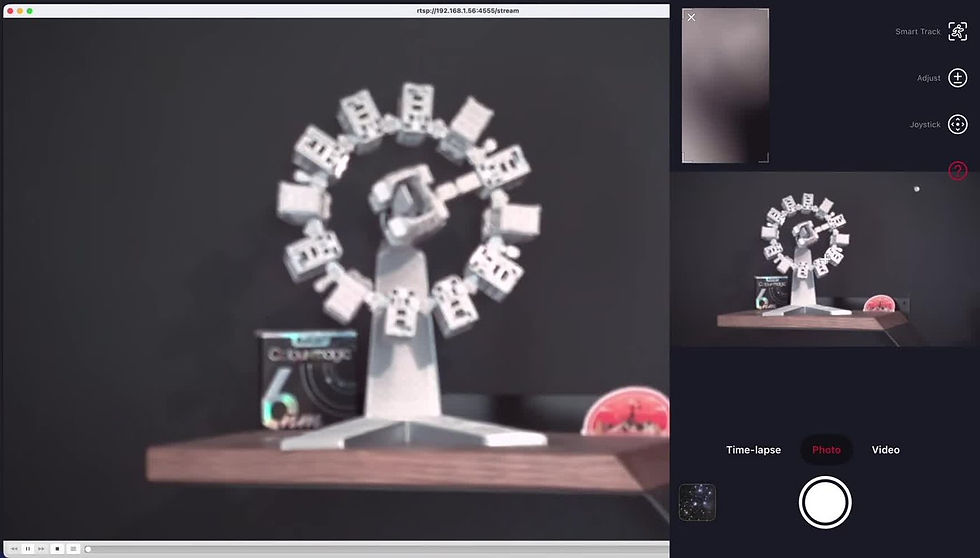
You should now see the same camera view in VLC that appears in the Seestar app. Keep using the Seestar app for the telescope controls while VLC displays the feed.
If VLC Shows an Error
First, check that the app is showing an active live view in Landscape or Solar System mode. Then confirm that the telescope, phone, and computer are on the same local network. Some modes are currently not supported.
If those checks pass, copy the address again from Advanced Feature and reopen it in VLC. An address saved from an earlier network setup may no longer match the telescope's current address. Also make sure you selected the RTSP address for the camera you're trying to display.
Full Walkthrough Video
Watch the video below to see the Mac connection, the Sky Atlas, and the RTSP demonstration from start to finish.
Final Thoughts
I personally do not use this feature as I don't see a huge need for it, but you might find it very useful if you like to things like live-streaming for example. It's also nice to have the option to use a computer screen if your phone is glitchy or slow.
Remember to check out the ZWO Seestar Smart Telescope Mastery course to fully master your Seestar telescope!
Make sure to follow Galactic Hunter on Facebook, Instagram, and YouTube to stay up to date with everything!
Clear Skies,
Antoine Grelin
Galactic Hunter


Comments